The Ultimate Guide to Watching YouTube on Android Auto
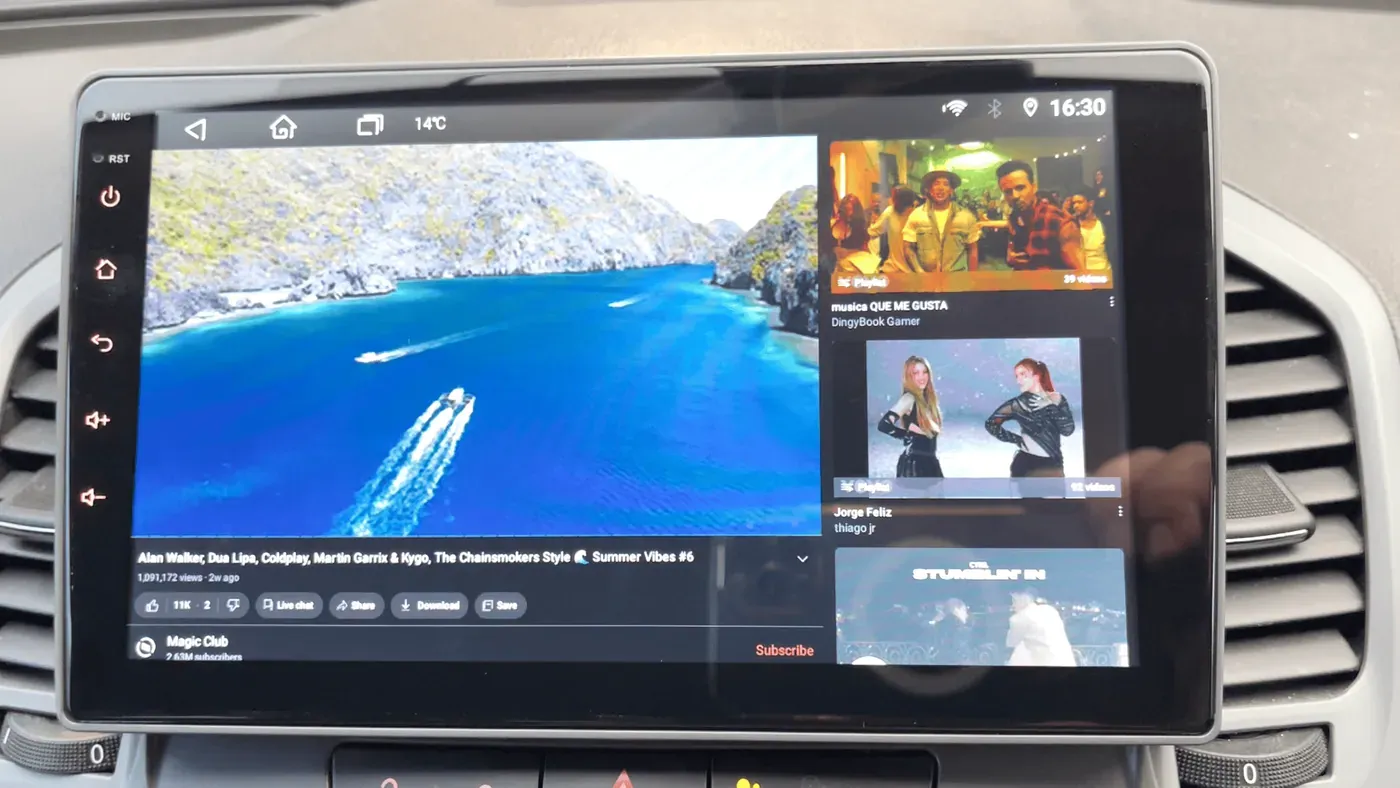
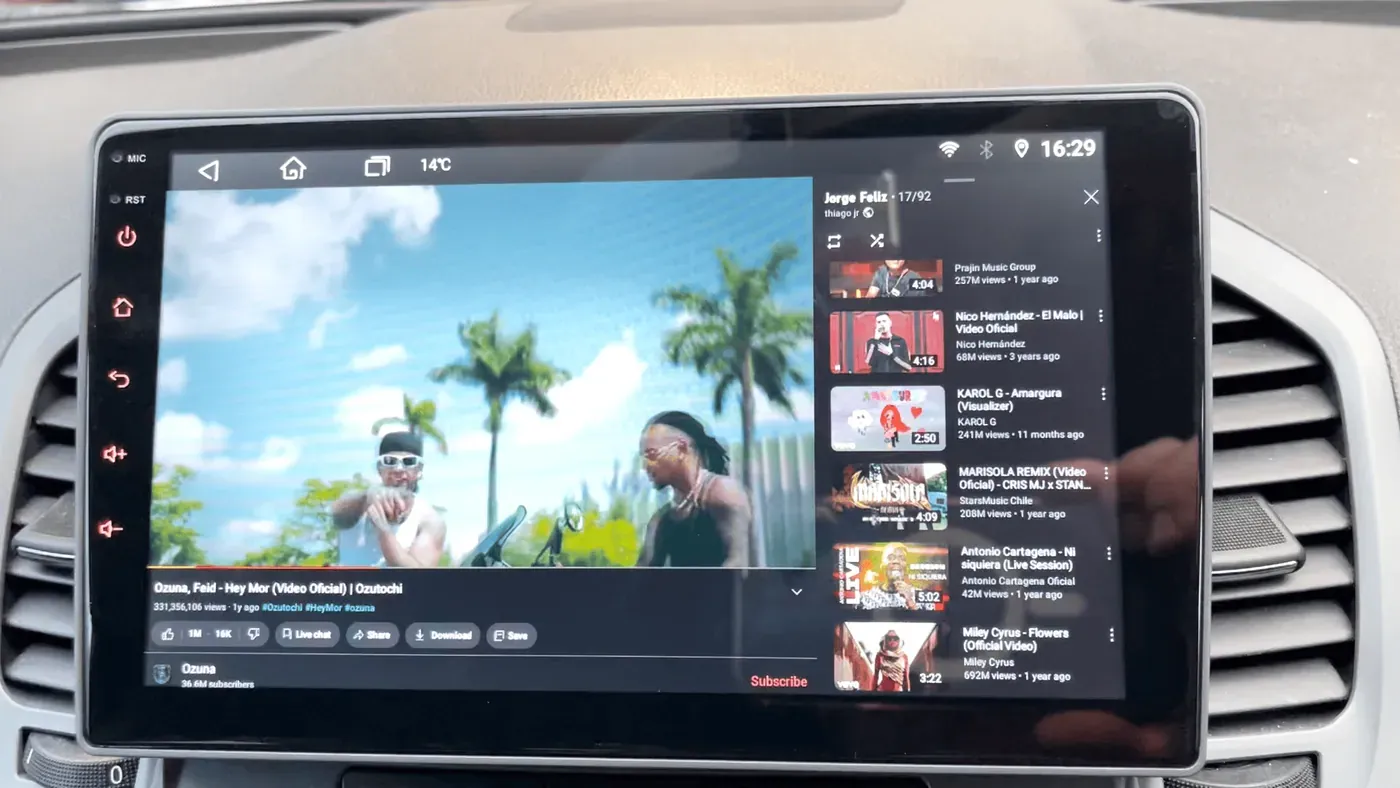
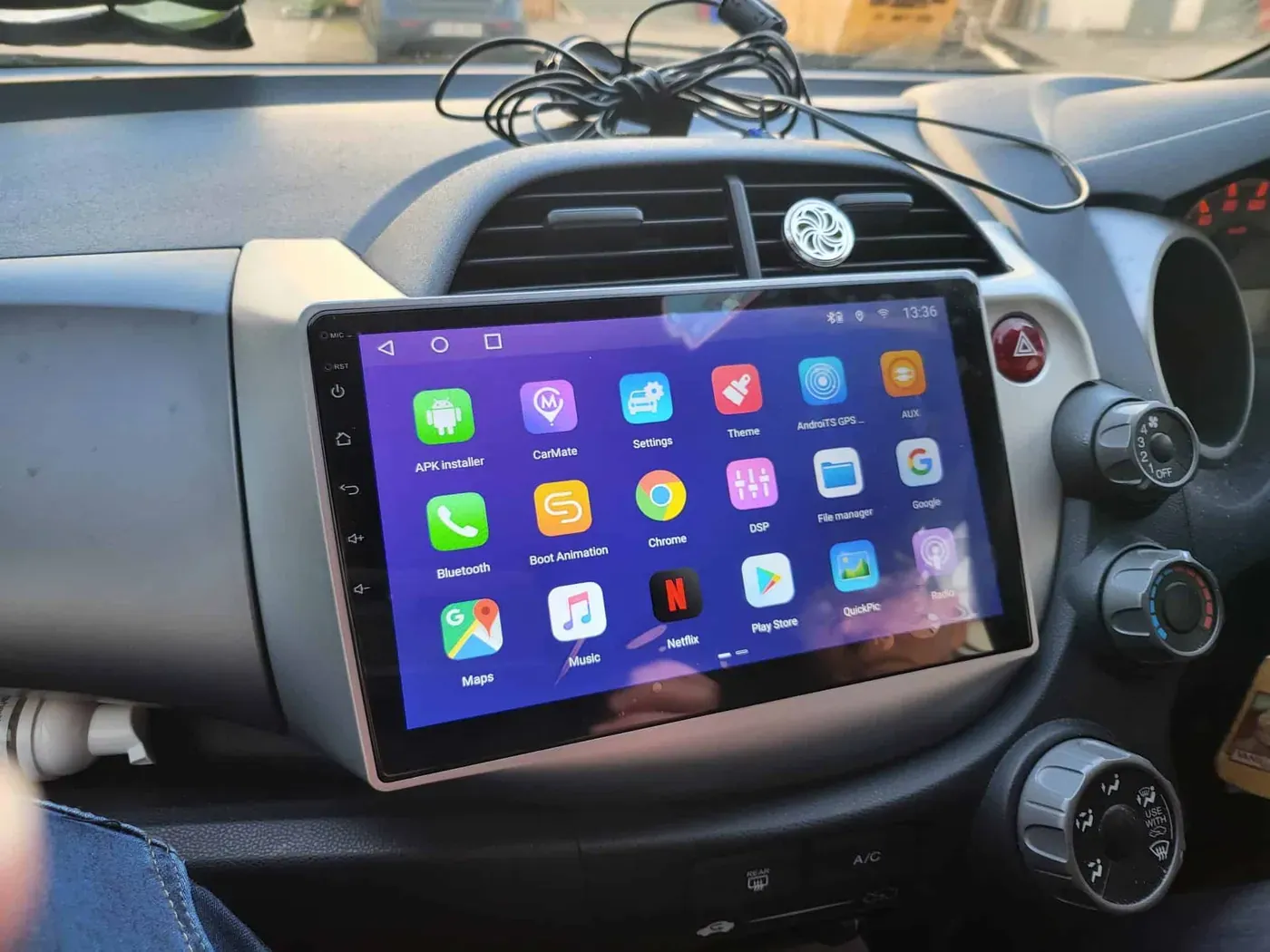
YouTube is not officially available on Android Auto, but it can be watched while parked by installing CarStream through AAAD (Android Auto Apps Downloader) on your phone. On an Android head unit like the ones we fit in Dublin, YouTube and Netflix run natively with no workaround. Here is the step-by-step, plus the safety rules.
Android Auto is designed to make driving safer and more enjoyable by bringing essential features like GPS navigation and audio controls directly to your car’s dashboard screen. But did you know that, with a few extra steps, you can watch YouTube videos on your car’s infotainment system? While this isn’t officially supported due to safety concerns, there is a way to get it working using third-party apps.
Important Disclaimer: Watching videos while driving is highly dangerous and illegal in many regions. This guide is meant to show you how to enable YouTube for use only when the vehicle is parked and you’re not operating the car.
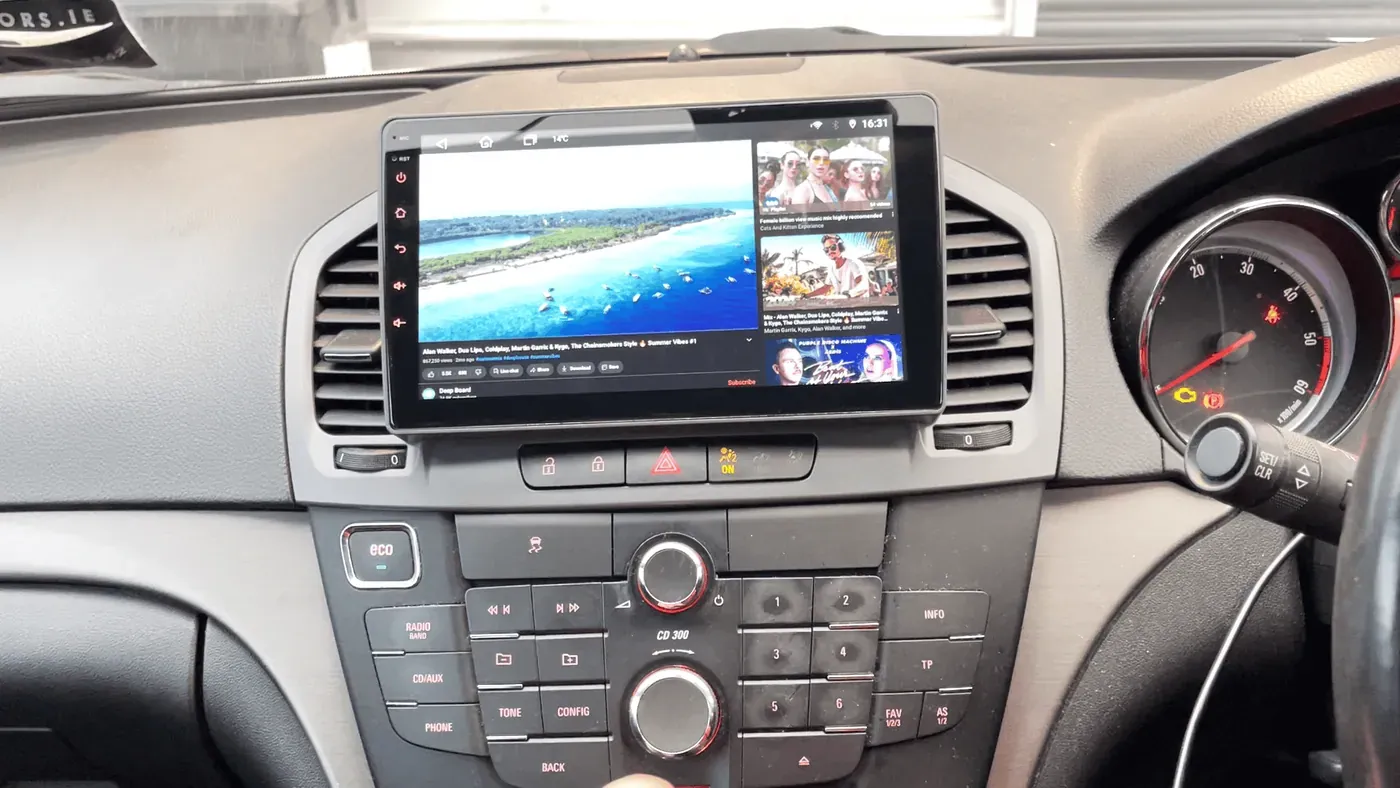
Step-by-Step Guide to Watching YouTube on Android Auto
To watch YouTube on your Android Auto setup, you’ll need to install a third-party app called CarStream. Here’s how to get it running without rooting or jailbreaking your device.
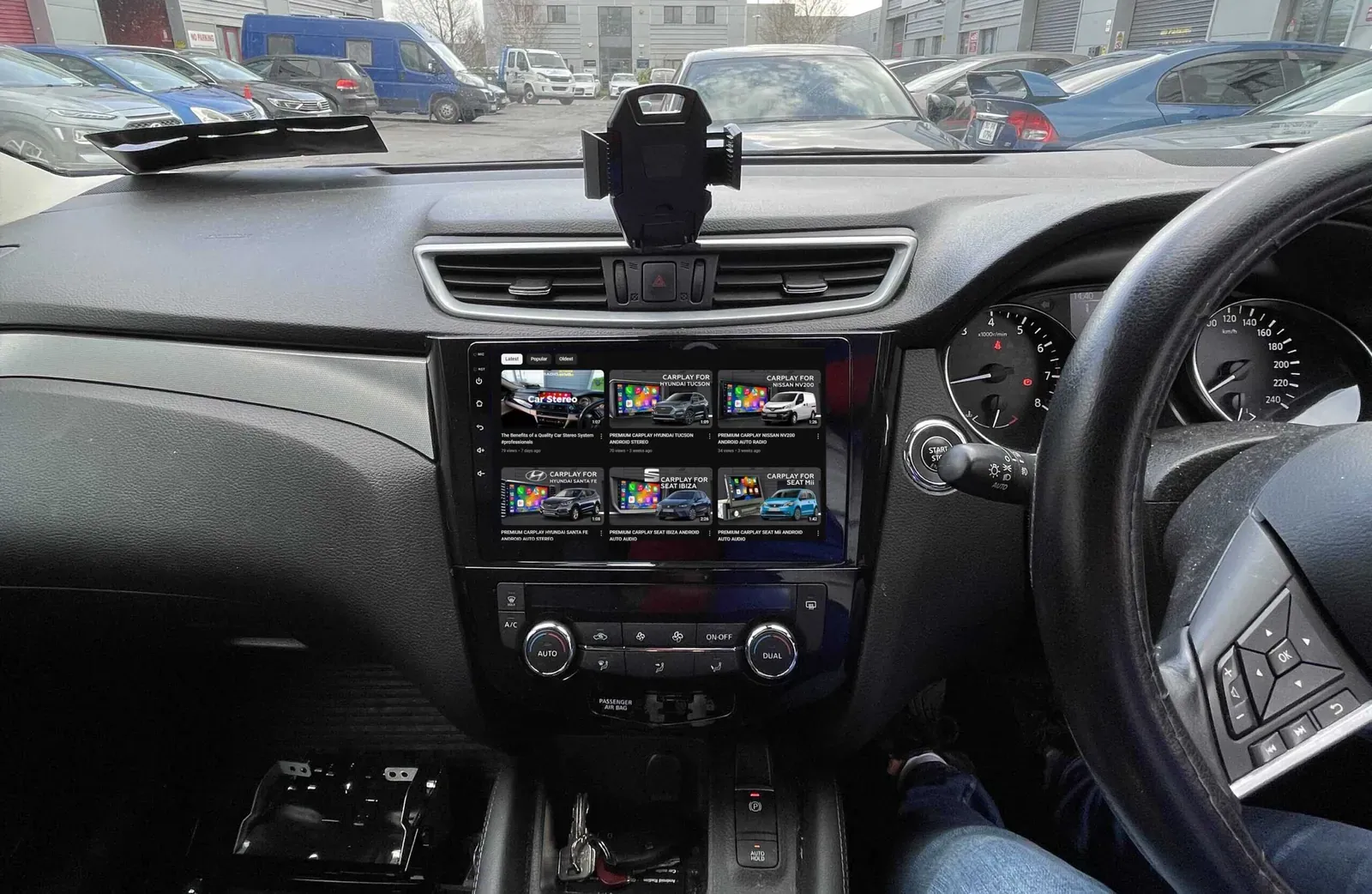
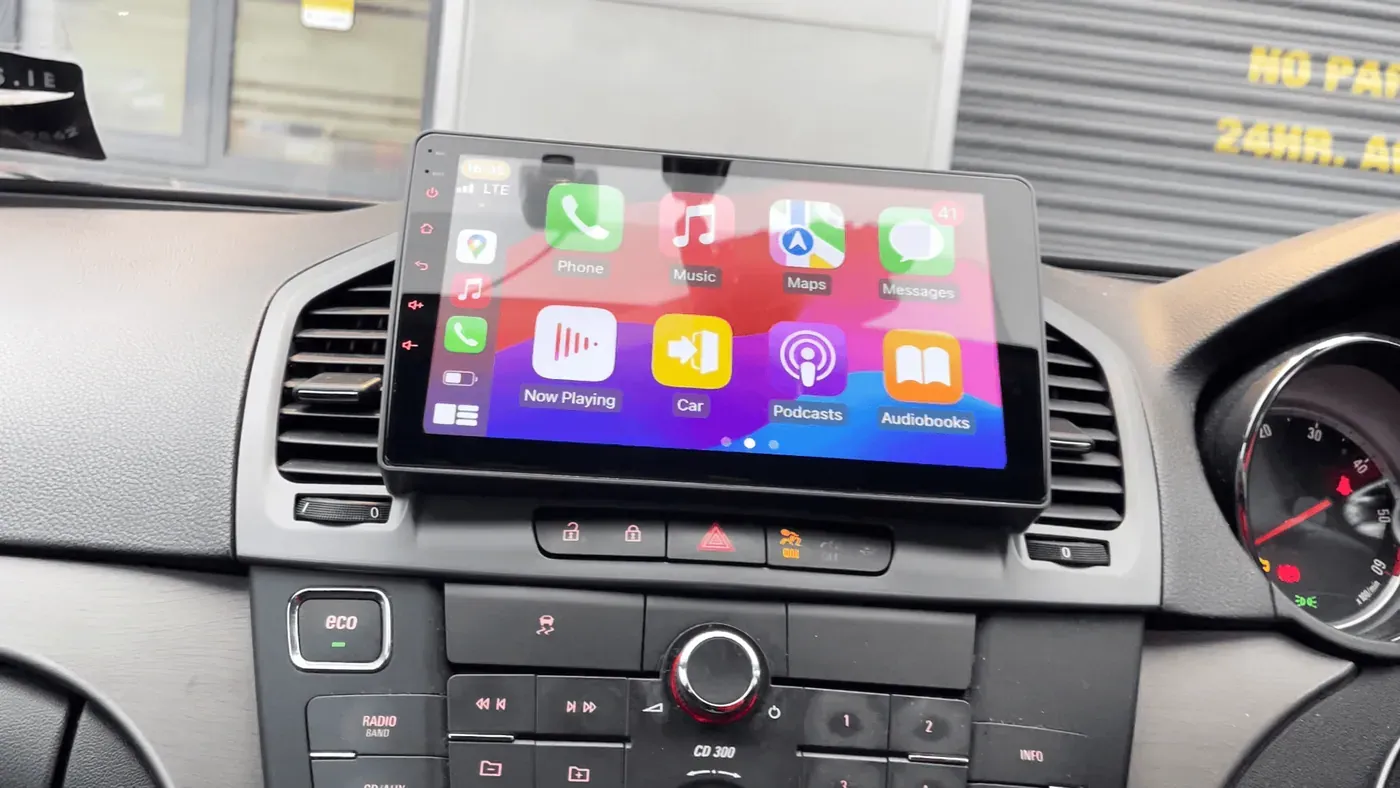
One shortcut first: if your car has one of the Android head units we fit in Dublin, YouTube and Netflix run natively on the unit while the car is parked, with no phone app and no workaround, and Android Auto and Apple CarPlay are built in for the drive itself. The steps below are for a factory Android Auto screen.
Step 1: Enable App Downloads from Chrome
Since CarStream isn’t available on the Google Play Store, you’ll need to adjust some settings on your phone to download apps from the web.
- Open Settings on Your Phone: Navigate to your Android device’s Settings.
- Find the Security Settings: Depending on your device model, look for either Security & Privacy or Apps & Notifications.
- Enable Downloading from Chrome: Locate the option for Chrome and toggle on the setting that allows downloads from unknown sources. This will let you install .apk files from the web.
Note: Remember to turn this setting off once you’ve finished downloading and installing the required apps to keep your phone secure.
Step 2: Download and Install AAAD (Android Auto Apps Downloader)
To make this process easier, we’ll use AAAD (Android Auto Apps Downloader), which is a platform that helps you download unofficial Android Auto apps.
- Go to the AAAD Website: Use your browser to find a trusted source for the AAAD .apk file. Download the file to your phone.
- Install the App: Open the downloaded file and tap Install. If your phone asks for permissions, grant them to proceed.
- Understand the Limitations: AAAD offers one free app download every 30 days. If you want to install more apps or need more frequent downloads, you’ll need to upgrade to the premium version.
Once AAAD is installed, you’re ready to move on to the next step: getting CarStream.
Step 3: Download and Set Up CarStream
CarStream is the app that will enable YouTube playback on your Android Auto system. Here’s how to install and configure it:
- Launch AAAD: Open the AAAD app on your phone. You’ll see a list of available apps for Android Auto, including CarStream.
- Download CarStream: Tap on CarStream and start the download process. Make sure to give the app all the necessary permissions, such as file access, to ensure it works correctly.
- Configure CarStream: Once installed, open the CarStream app. Tap the menu icon (three dots) in the top-right corner and select Settings.
- Enable Desktop Mode: In the settings, check the box for Enable Desktop Mode. This will make CarStream function more like a browser, allowing you to access YouTube and other web content easily.
Now, CarStream is ready to stream YouTube videos.
Step 4: Connect Your Phone to Your Car
With CarStream set up on your Android device, it’s time to connect everything to your car’s infotainment system:
- Plug in Your Phone: Connect your phone to your car using a USB cable or wirelessly if your car supports wireless Android Auto.
- Open Android Auto: Once Android Auto launches on your car’s dashboard, you should see CarStream listed among your available apps.
- Access YouTube: Tap on CarStream, which will open a browser window. By default, it should navigate to the YouTube homepage. From here, you can sign in, search for videos, and explore content just as you would on a regular browser.
- Full-Screen Playback: When you select a video, it will initially open in a smaller window. Tap the fullscreen icon to enlarge the video for a better viewing experience.
You can now watch YouTube videos on your car’s screen. Remember to use this feature responsibly and only when the vehicle is parked.
Why Use YouTube on Android Auto?
You might be wondering why someone would want to watch YouTube videos on their car’s dashboard. Here are some practical use cases:
- Waiting in the Car: Whether you’re waiting for someone at the airport or in a parking lot before an appointment, watching YouTube can help pass the time.
- Entertainment for Passengers: If you have passengers, they can watch videos comfortably on the larger screen without needing to hold a phone.
- Educational Content: Long road trips often come with extended breaks. You can use the time to learn something new or even follow a guided meditation.
Important Safety Reminders
While it may be tempting to use YouTube in traffic or while driving slowly, this is extremely dangerous. Always ensure that the car is in park and that you are in a safe, stationary location. Laws regarding video playback in cars vary by region, so make sure you understand the regulations in your area.
Final Thoughts
While using YouTube on Android Auto isn’t a built-in feature, apps like CarStream make it possible to bring this functionality to your car. Just make sure to use this feature responsibly, keeping safety a top priority. With this setup, your car can become a comfortable space to enjoy videos while waiting or taking breaks.
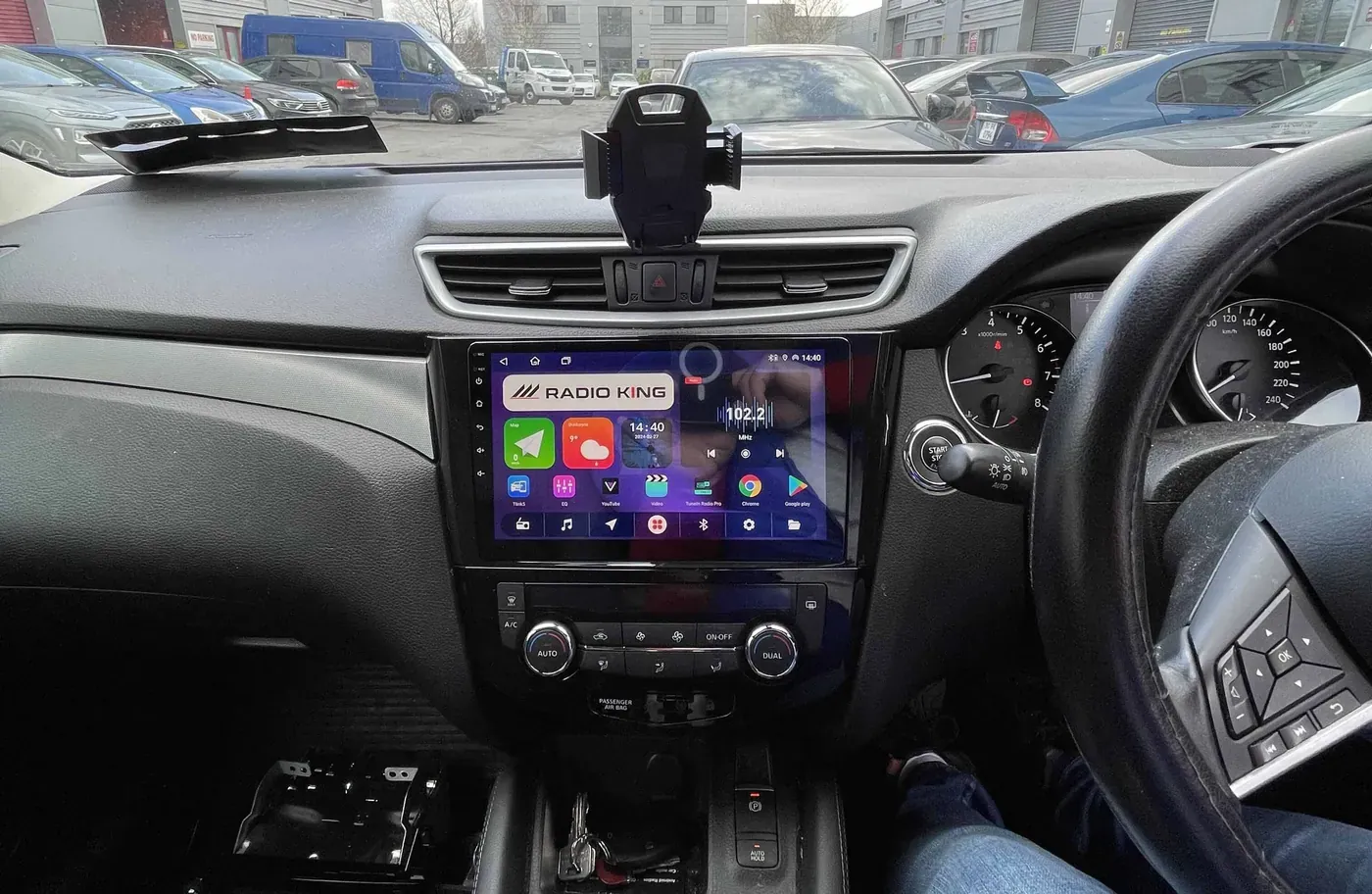
Enjoy your new setup, and always remember: safety comes first! If you would rather have video, navigation and CarPlay on one screen without third-party apps, see our Android Auto installation page or recent installs like this Nissan Qashqai head unit.
Updated 4 September 2026